

How To Use
Our campaign management platform simplifies the process of planning,
executing, and tracking your marketing campaigns. With an intuitive interface and powerful tools,
you can easily set goals, manage tasks, and analyze performance to achieve the best results.
Whether you’re a beginner or an expert, our platform is designed to help you succeed
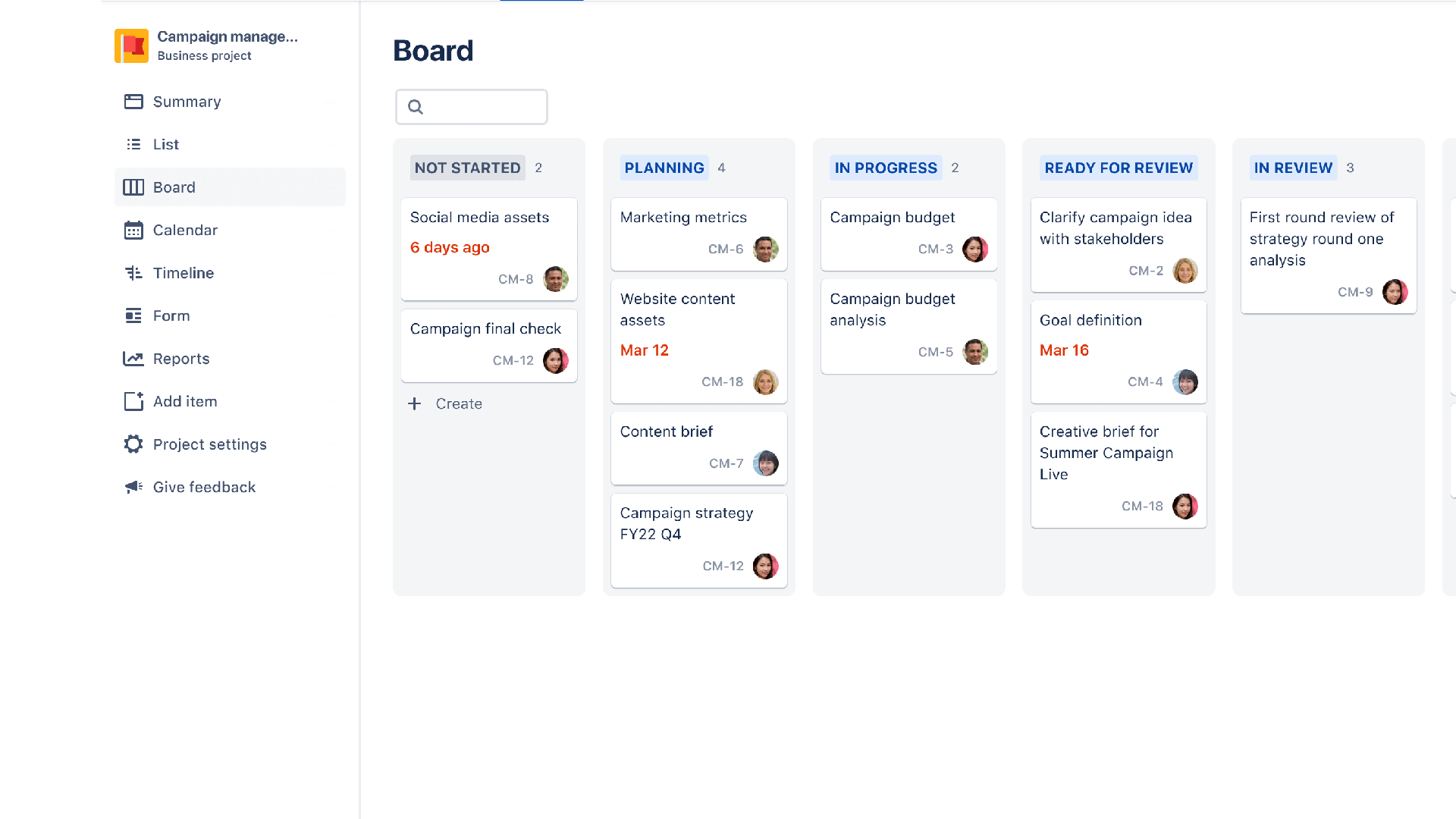
Campaign
management
template
execution.
best for
- Marketing
key features
- Task planning
- Prioritization
- Pipeline management
How to get started with the
campaign management
set your goals, and start managing your campaigns seamlessly.
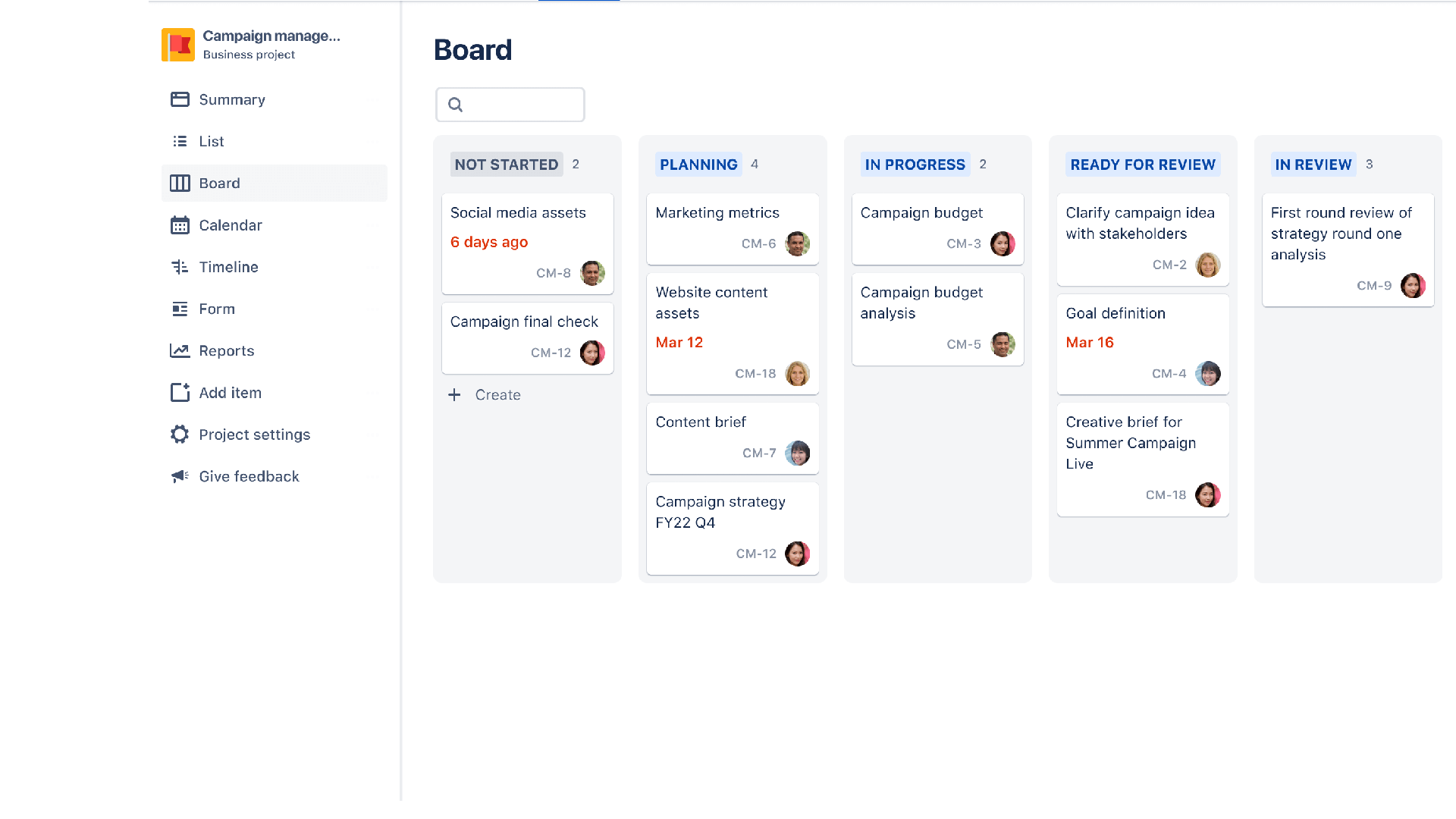
Getting Started. create your
first new customer call record
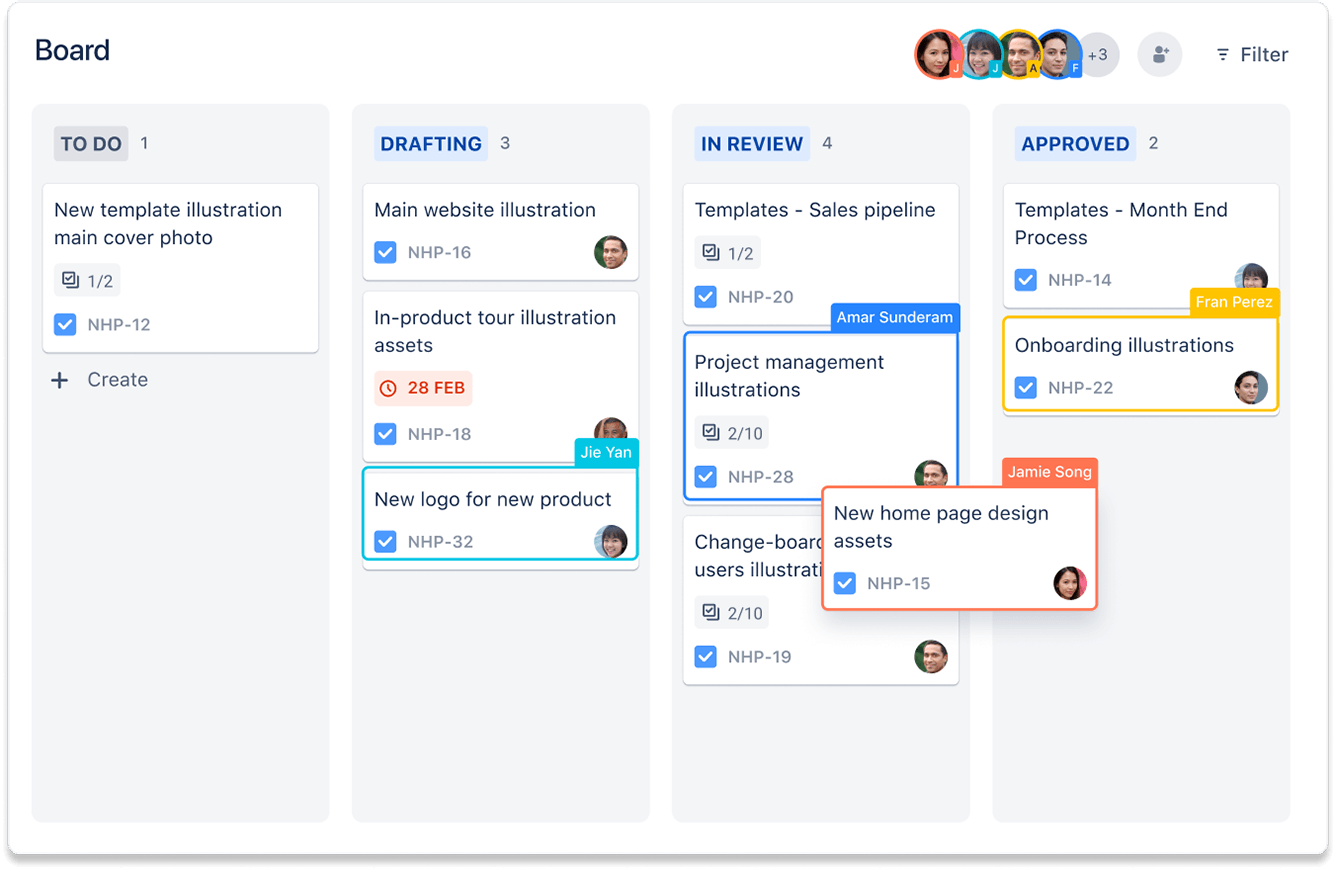
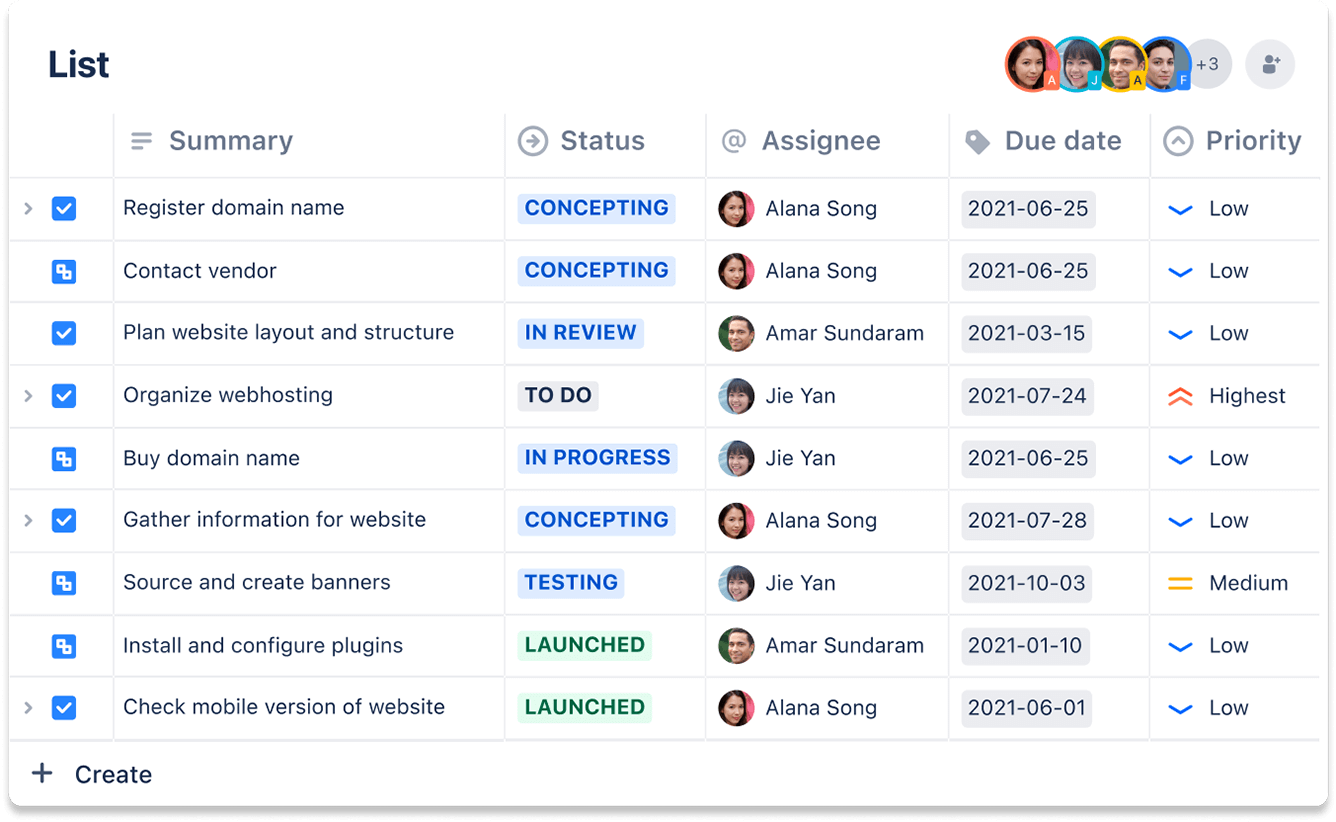
- First go to call details section. You are provided with a Add (Blue) symbol to create a new contact row, just enter the organisation name, customer name, phone, designation and city and press + to save. The phone number is mandatory to create a contact row. Please see the pictures below
- You can have one row for a uniquely named customer contact and organisation name, which should be enough as inside each contact row you can add more contact names. However, you also have the option to create multiple contact rows for the same organisation, say organisation ABC1 based in city 1 and the same organisation ABC2 based in city 2.
Managing Customer Call
- All rows have an automatic counter to record the days that have passed since you made the last customer call. Additionally, you can also put in a date when you want to make the next customer call.
- Subsequently once the data is entered in the contact rows created and you just happen to have spoken to your customer, and it’s a short conversation like ‘it’s been a busy week let’s talk in next week’. This is not a detailed conversation but you as a sales person have made a relationship touch with your customer. You can make quick use of provided done button which is the first button for the row, just press it and the days counter starts from zero again. It reminds you of when you last spoke to your customer even if it was a short call.
Saving Customer Details
- You can enter more information within each row such as designation, ratings, customer type etc. This can be done by pressing + within a grey box towards the end of a row which opens a details form which has 4 parts, explained in the following.
- Part 1 - Contacts details, all details associated with the new contact can be inserted here. We can add contact details such as address, chat, phone and email. In a busy sales environment, it is recommended to enter in contact row first and then edit/add-up in the contact details from inside. Initially we have 1 contact name and organisation name in the main call summary page, but we can add additional customer names inside, i.e. more customer names can be added inside to one organisation. Just that only the first contact in contact details section gets displayed on the contact row. Small business owners and retail users can use generic words like “other” or “shop” in organisation name. Turant sales is designed to support a single person business and also large enterprises.
friendly questions related to campaign management:
What goals are you aiming to achieve with your campaign?
Define specific, measurable objectives like increasing brand awareness, driving traffic, or boosting sales.
Do you have a specific target audience in mind?
Identifying your target audience helps tailor your campaigns to the right people for maximum impact.
How do you plan to measure the success of your campaign?
Success can be tracked through metrics like conversions, engagement rates, or return on investment (ROI).
What tools or strategies have you used for campaign management before?
Using tools like email marketing platforms, CRM systems, or social media schedulers can streamline your process.
Ready to use this campaign management:
management platform designed for seamless planning, execution, and tracking.
